# DIY Otto Robot Guide
## Project Overview
Otto Robot is an open-source humanoid robot platform that supports multiple functional extensions. This guide will help you quickly build and configure your own Otto robot and achieve remote control through the Tuya Smart APP.
## Demo Video
Scan QR code to watch:

## 1. Materials List
The following are the hardware materials required to make an Otto Robot:
1. **Shell**
- Model: Otto Robot 3D printed body shell
- Purchase: Ask someone to help print on Xianyu~
- Use 3D printer to print from open source projects online~
- **otto shell (Xiaopeng sharing)**: [Otto Robot Xiaozhi AI](https://makerworld.com.cn/zh/models/1117966-ottorobot-xiao-zhi-ai#profileId-1284462)

- **otto emo shell (Lüyin Aguang sharing)**:
- [Gitee Repository](https://gitee.com/maker-community/VerdureLab)
- [GitHub Repository](https://github.com/maker-community/VerdureLab)

- **otto duck shell**: [Duck Shell](https://github.com/maker-community/VerdureLab/tree/main/verdure-duck)

2. **Servo Motors**
- Model: SG90 180-degree servo motors (4 without arms, 6 with arms)
- Purchase channel: Taobao
3. **Display Screen**
- Model: ST7789 / Otto duck shell dual-eye 0.96-inch 160*80 ST7735S screen
- Purchase channel: Taobao
4. **Development Board**
- Model: T5 otto development board
- Purchase method: Taobao/Contact Tuya AI developer group leader
- Based on otto T5 open source project on JLCEDA, make your own board:
- Project 1: [Hello Tuya Otto Robot](https://oshwhub.com/dream000/ni-hao-tu-ya-otto-ji-qi-ren)
- Project 2: [Otto Robot](https://oshwhub.com/txp666/ottorobot)
## 2. Hardware Wiring Diagram
| Hardware Device | Peripheral | T5 Pin | Pin Function |
| --- | --- | --- | --- |
| Screen | SCL | P14 | SPI0 Clock |
| | CS | P13 | SPI0 Chip Select |
| | SDA | P16 | SPI0 Data |
| | RST | P19 | Screen Reset |
| | DC | P17 | Data/Command Select |
| | BLK | P5 | Screen Backlight |
| Servo | PWM0 | P18 | Left Leg Servo |
| | PWM1 | P24 | Right Leg Servo |
| | PWM2 | P32 | Left Foot Servo |
| | PWM3 | P34 | Right Foot Servo |
| | PWM4 | P36 | Left Hand Servo |
| | PWM7 | P9 | Right Hand Servo |
## 3. Assembly Tutorial
- [Otto Robot Assembly Tutorial](https://www.bilibili.com/video/BV1dyjhzzExr?share_source=copy_web) (Recommended to watch the detailed tutorial)
- [T5 Duck Assembly Tutorial](https://xhslink.com/m/AcpWKIV1SEm) (T5 version wiring usage)
## 4. TuyaOpen Documentation Development Tutorial (Important)
[Tuya TuyaOpen Official Documentation](https://tuyaopen.ai/zh/docs/about-tuyaopen)
## 5. Code Download, Modification and Compilation
### 1. Code Download
#### Step 1: Install Git
Choose the corresponding installation method according to your operating system:
- **Windows System**
1. Visit [Git Official Website](https://git-scm.com/), click to download the version suitable for Windows
2. Run the installer and follow the wizard
- **Linux System**
```bash
sudo apt update
sudo apt install git
```
- **macOS System** (using Homebrew, recommended)
1. If Homebrew is not installed, execute first:
```bash
/bin/bash -c "$(curl -fsSL https://raw.githubusercontent.com/Homebrew/install/HEAD/install.sh)"
```
2. Install Git:
```bash
brew install git
```
#### Step 2: Clone Code Repository
- GitHub TuyaOpen main repository: [TuyaOpen](https://github.com/tuya/TuyaOpen)
- This robot project uses the repository: [your_otto_robot](https://github.com/tuya/TuyaOpen/tree/master/apps/tuya.ai/your_otto_robot)
```bash
git clone https://github.com/tuya/TuyaOpen.git
```
### 2. Environment Configuration
Official documentation: [TuyaOpen Environment Setup](https://tuyaopen.ai/zh/docs/quick-start/enviroment-setup#%E7%8E%AF%E5%A2%83%E5%87%86%E5%A4%87)
After configuring the environment, activate the `tos.py` compilation tool:
```bash
cd TuyaOpen
```
Choose activation method according to operating system:
- **Linux System**
```bash
. ./export.sh
```
- **macOS System**
```bash
. ./export.sh
```
- **Windows System**
```bash
.\export.ps1 # PowerShell (need to execute `Set-ExecutionPolicy RemoteSigned -Scope LocalMachine` first)
# or
.\export.bat # CMD
```
### 3. Product ID (PID) & Authorization Code Modification
- **PID Modification**: Enter cd apps/tuya.ai/your_otto_robot/ directory
Execute command: tos.py config menu


Press S to save after modification, Q to exit interface
- In the file `apps/tuya.ai/your_otto_robot/include/tuya_config.h`, confirm whether the PID is modified to `aub53kai42j8fdlf` (you can also create your own)
### 4. T5AI_OTTO Screen Configuration Selection
After executing `tos.py config menu`, you need to select T5AI_OTTO screen configuration in the configuration interface:
**Detailed Configuration Steps:**
1. **Enter Configuration Menu**
```bash
cd apps/tuya.ai/your_otto_robot/
tos.py config menu
```
2. **Navigation Path Guide**
```
(Top) → configure app (your_otto_robot) → choose Otto robot board type
```
3. **Specific Operation Steps:**
- Find the `configure app (your_otto_robot)` option in the configuration menu
- Press Enter to enter submenu
- Find the `choose Otto robot board type` option in the submenu
- Press Enter to enter servo configuration selection
4. **Servo Configuration Selection:**
- **OTTO_BOARD_DEFAULT_TXP**: Standard TXP board configuration (default selection)
- **OTTO_BOARD_DREAM**: Dream board configuration
5. **Screen Configuration Selection (if needed):**
In the same configuration menu, you also need to select screen configuration:
- Find the `T5AI_OTTO_EX_MODULE` option
- Press Enter to enter screen selection
- Select `T5AI_OTTO_EX_MODULE_ST7735S_XLT` (duck shell)
- Or select `T5AI_OTTO_EX_MODULE_13565LCD` (standard Otto shell)
**Screen Configuration Description:**
- **ST7735S_XLT**: Suitable for duck shell 0.96-inch 160*80 ST7735S screen
- **13565LCD**: Suitable for standard Otto shell 1.54-inch 240x240 screen
**Servo Configuration Selection:**
- **OTTO_BOARD_DEFAULT_TXP**: Standard TXP board configuration, using default pin mapping
- Left leg: PWM0 (P18)
- Right leg: PWM1 (P24)
- Left foot: PWM2 (P32)
- Right foot: PWM3 (P34)
- Left hand: PWM4 (P36)
- Right hand: PWM7 (P9)
- **OTTO_BOARD_DREAM**: Dream board configuration, using custom pin mapping
- Left leg: PWM0 (P18)
- Right leg: PWM7 (P9) - Different from standard configuration
- Left foot: PWM3 (P34)
- Right foot: PWM1 (P24) - Different from standard configuration
- Left hand: PWM2 (P32)
- Right hand: PWM4 (P36) - Different from standard configuration
**Configuration Difference Description:**
- `OTTO_BOARD_DEFAULT_TXP`: Suitable for standard TXP development boards, pin configuration matches hardware wiring diagram
- `OTTO_BOARD_DREAM`: Suitable for Dream custom development boards, some servo pins have been remapped, mainly the pin positions of right leg, right foot, and left hand have changed
**Configuration Menu Operation Tips:**
- Use arrow keys ↑↓ to move cursor
- Use space key to select/deselect options
- Use Enter key to enter submenu or confirm selection
- Use 'S' key to save configuration
- Use 'Q' key to exit configuration menu
- Use '?' key to view help information
**Complete Configuration Path Summary:**
```
(Top) → configure app (your_otto_robot) → choose Otto robot board type
→ T5AI_OTTO_EX_MODULE (screen selection)
```
**Configuration Option Description:**
- **choose Otto robot board type**: Select servo configuration (OTTO_BOARD_DEFAULT_TXP or OTTO_BOARD_DREAM)
- **T5AI_OTTO_EX_MODULE**: Select screen configuration (ST7735S_XLT or 13565LCD)
### 5. UUID Acquisition and Configuration
**UUID Acquisition Steps:**
1. Visit [Tuya Open Repository](https://github.com/tuya/TuyaOpen), click "Star" in the upper right corner and join the group to get UUID
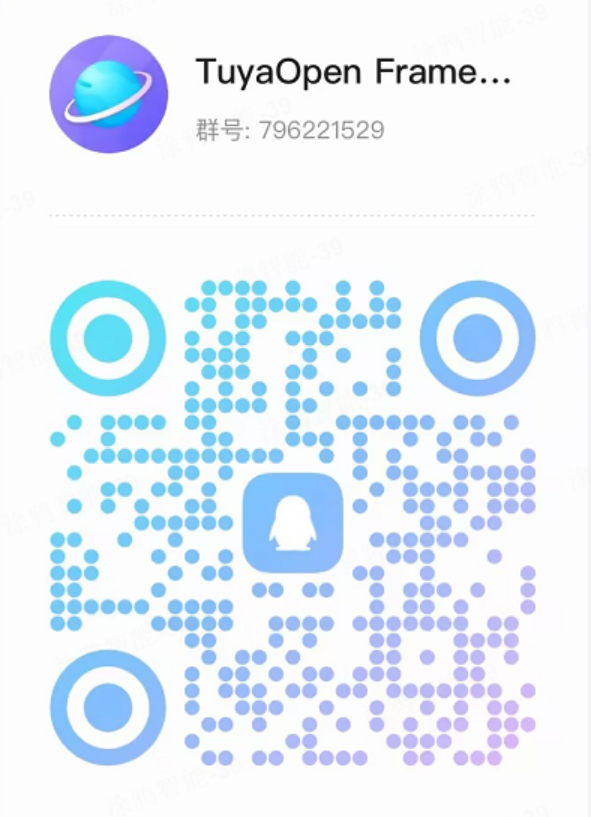
2. In `apps/tuya.ai/your_otto_robot/include/tuya_config.h`, change **UUID to your applied UUID (very important, otherwise cannot activate network configuration)**

**Notes:**
- If your T5 module was ordered with TuyaOpen authorization code pre-burned, you don't need to fill in UUID and AUTHKEY
- UUID is a key parameter for device activation and network configuration, please configure it correctly
### 6. Compile Code and Generate Firmware
Reference documentation: [TuyaOpen Official Documentation](https://tuyaopen.ai/zh/docs/about-tuyaopen)
1. Enter the corresponding `your_otto_robot` directory:
```bash
cd apps/tuya.ai/your_otto_robot/
```
2. Select configuration:
```bash
tos.py config choice
```
Select `1` to proceed.
_(If you encounter `tos.py: command not found` error, it means the `tos.py` compilation tool was not successfully activated, please check the above activation steps)_
3. Compilation command:
```bash
tos.py build
```
## 7. Firmware Burning Guide
Official documentation: [TuyaOpen Firmware Burning](https://tuyaopen.ai/zh/docs/quick-start/firmware-burning)
## 8. Control Effect Confirmation
### 1. AI Motion Control
1. Download Tuya Smart APP
2. Add sub-device in the upper right corner of the APP, select "Robot"
3. Enter the control interface to control the robot through the APP:
- Left and right movement
- Forward and backward movement
4. Use voice control to move Otto robot forward, backward, left and right (wake words: "Hello, Tuya", etc.)
### 2. AI Chat
Use voice wake-up chat (wake words: "Hello, Tuya", "hey, tuya")
### 3. Feature List
- Support basic walking movements
- Support voice command control
- Screen display status information
- Support video recognition (future planning)
## 9. Resource Support
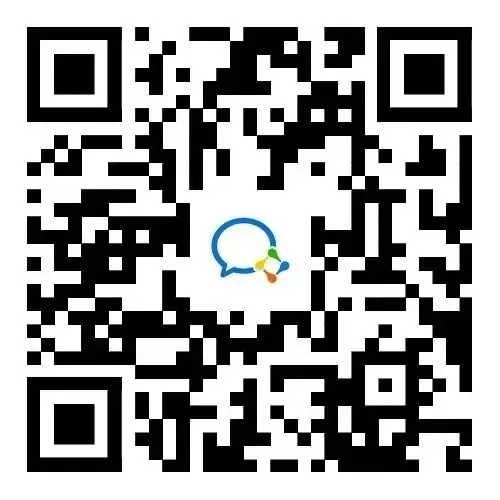
- **Technical Exchange**: Join Tuya AI development QQ group/WeChat group for technical support

- **Community Sharing**: Welcome to share your project insights on GitHub or Tuya Developer Community
Wish you success in building your own smart Otto robot!
## 10. Acknowledgments
This project thanks the following open source authors for their support:
1. [txp666]
This project thanks the following open source projects for their support:
1. OttoDIYLib
This project thanks the following open source communities for their support:
1. JLCEDA